Custom questions let you collect extra feedback with product reviews, such as fit, sizing, or quality. These answers can also be displayed directly on your product review widget.
This guide walks you through two parts:
Adding a custom question to the review form
Displaying that question on the product reviews widget
Part 1: Add a Custom Question to the Review Form
1. Open the Review Widget Settings
In the SiteVibes dashboard, click Reviews
Click Widgets
Select Write a Review
2. Add a New Question
Click Form Fields
Click Add Question
Choose a question type (Radio Buttons are recommended for options like sizing or fit)
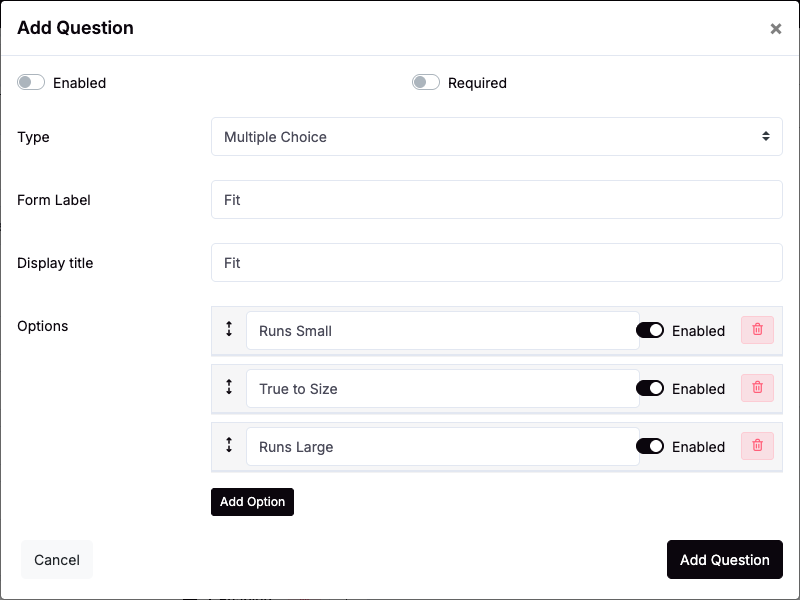
3. Configure the Question
Enter a Form Label (example: Fit)
Enter a Display Title (example: Fit)
Add answer options, for example:
Runs Small
True to Size
Runs Large
Enable each option
Click Add Question
4. Save Your Changes
Click Update
Click OK to confirm
Your custom question is now part of the review submission form.
Part 2: Display the Custom Question on the Product Reviews Widget
1. Open the Product Reviews Widget
Go to Reviews → Widgets
Click Product Reviews
2. Add the Question to the Widget Layout
Click Sub-header
Set Type to Question
Select your custom question (example: Fit)
Choose a layout (Layout 1 is recommended for most stores)
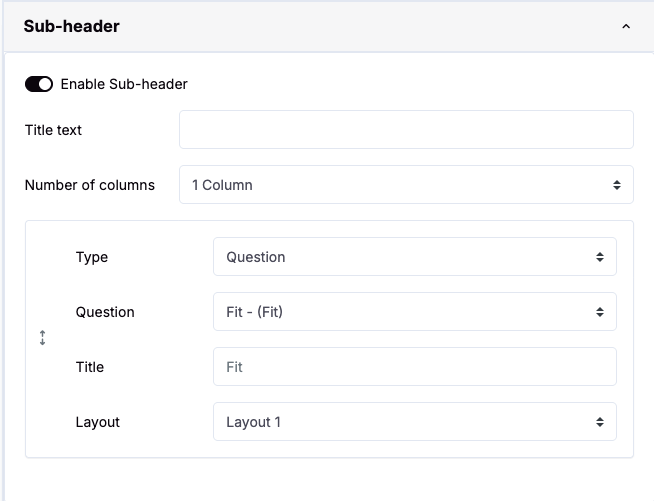
3. Save the Widget
Click Update
Click OK
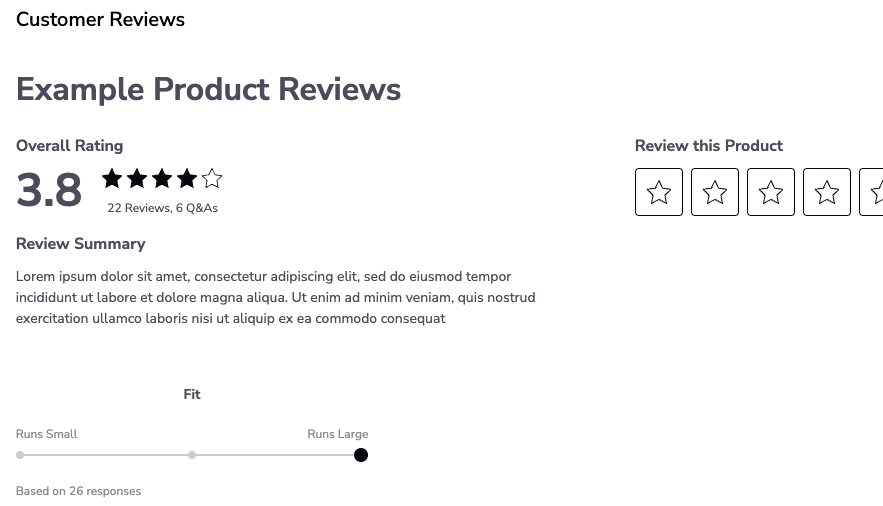
Result
Shoppers will see the custom question when leaving a review
Aggregated responses (such as Fit results) will appear directly on the product reviews widget
This helps future shoppers make better buying decisions
Tips
Keep questions short and clear
Use radio buttons for structured answers
Fit, sizing, and quality questions work especially well for apparel and footwear
If you need help setting this up or want recommendations for your store, contact SiteVibes support.
Was this article helpful?
That’s Great!
Thank you for your feedback
Sorry! We couldn't be helpful
Thank you for your feedback
Feedback sent
We appreciate your effort and will try to fix the article